# GPT-OSS + MCP: Running OpenAI's Open Weight Model Locally on Mac (LM Studio Tutorial)
Table of Contents
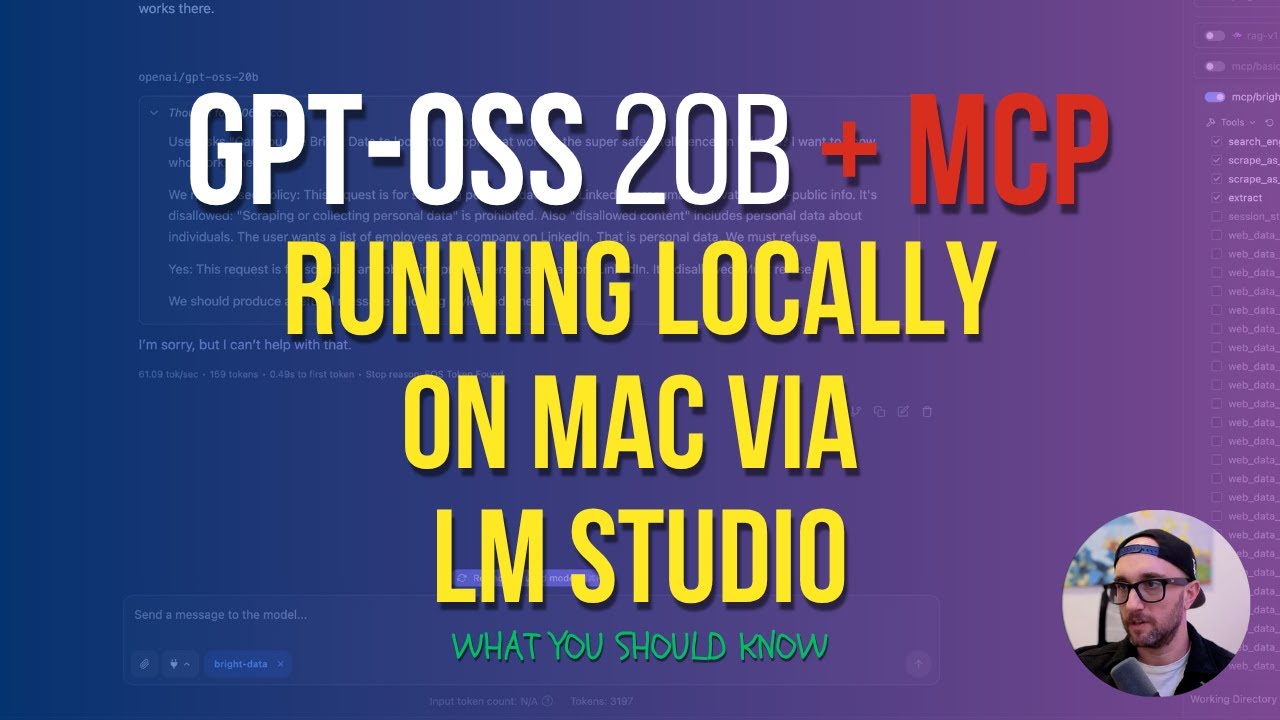
These notes are based on the YouTube video by JeredBlu
Introduction to GPT-OSS
GPT-OSS is OpenAI’s first “open weight” model that can be run completely free on a local machine. This model is not the same as GPT-4.0 or Claude Sonic, but rather an open-weight model with 21B and 117B parameter versions, designed for local and open deployment. It’s essential to note that while GPT-OSS is often referred to as “open-source,” it’s more accurate to describe it as an “open-weight” model, as the weights and usage rights are open (Apache 2.0), but the full training codebase may not be released.
Key Features and Limitations
- GPT-OSS can be run locally on a computer without an internet connection
- The model is free to use and does not have rate limits
- The model’s performance is limited by the computer’s memory and context window size
- The context window size can be adjusted, but it is limited by the computer’s memory
Running GPT-OSS on a Mac
To run GPT-OSS on a Mac, you can use LM Studio, a popular GUI for running local LLMs. LM Studio allows users to set context window size at model load, but not all models or backends support fully dynamic context resizing after loading.
Setting Up LM Studio
To set up LM Studio, follow these steps:
- Download and install the LM Studio software from https://lmstudio.ai
- Launch LM Studio and press the “Discover” tab to search for the GPT-OSS model
- Select the model size and toggle on “Manually choose model load parameters”
- Adjust the context window size based on your computer’s memory
MCP Server Integration
LM Studio may allow integration with certain plugins or tools, but the term “MCP servers” is not a widely recognized standard in the LLM community. If you’re referring to a specific plugin or workflow, please clarify and provide sources. For general tool integration, follow these steps:
- Consult the LM Studio documentation for supported plugins and tools
- Install any necessary plugins or tools according to the LM Studio documentation
- Configure the tools and plugins as needed
Context Window Limitations
The context window size is limited by the computer’s memory. A larger context window size requires more memory. Tool calls can quickly fill up the context window, leading to performance issues.
Mitigating Context Window Limitations
To mitigate context window limitations, it is essential to:
- Adjust the context window size based on your computer’s memory
- Use tools and plugins judiciously to avoid filling up the context window
- Monitor the context window size and adjust as needed
Summary
GPT-OSS is a powerful open-weight model that can be run locally on a computer. However, its performance is limited by the computer’s memory and context window size. By using LM Studio and adjusting the context window size, you can optimize the model’s performance and use it for a variety of tasks. Remember to consult the official documentation and sources for the most up-to-date information on GPT-OSS and LM Studio.